How to Add Users to Your Google Business Profile: Step-by-Step Instructions for Business Owners
Google Business Profile (formerly Google My Business) is essential for any local business trying to stand out in search results and on Google Maps. Whether you’re managing the listing yourself or working with a trusted agency like Chavez Affiliates Digital Marketing Agency Tampa, understanding how to give the right people access is critical.
In this guide, we’ll walk you through exactly how to add users to your Google Business Profile, explain the different user roles, and share best practices for managing access securely and efficiently.
Why Adding Users Is Important for Your Business
As your business grows, so does the need for collaboration. Whether it’s your marketing team, an SEO expert, or a digital agency partner, having the right people managing your profile ensures:
- Consistent Branding
- Timely Posts and Updates
- Review Monitoring and Responses
- Accurate Business Information
- SEO Optimization
Delegating access eliminates bottlenecks and allows professionals like us at Chavez Affiliates to optimize your online visibility while you focus on your core business.
How to Add Users to Your Google Business Profile
Follow these easy steps to add someone to your profile:
Step 1: Sign into Google Business Profile Manager
Head over to https://business.google.com and log in using the account that owns or manages your business.
Step 2: Select the Business Listing
If your Google account manages multiple listings, select the specific location or profile you’d like to edit.

Step 3: Access the “Business Profile Settings”
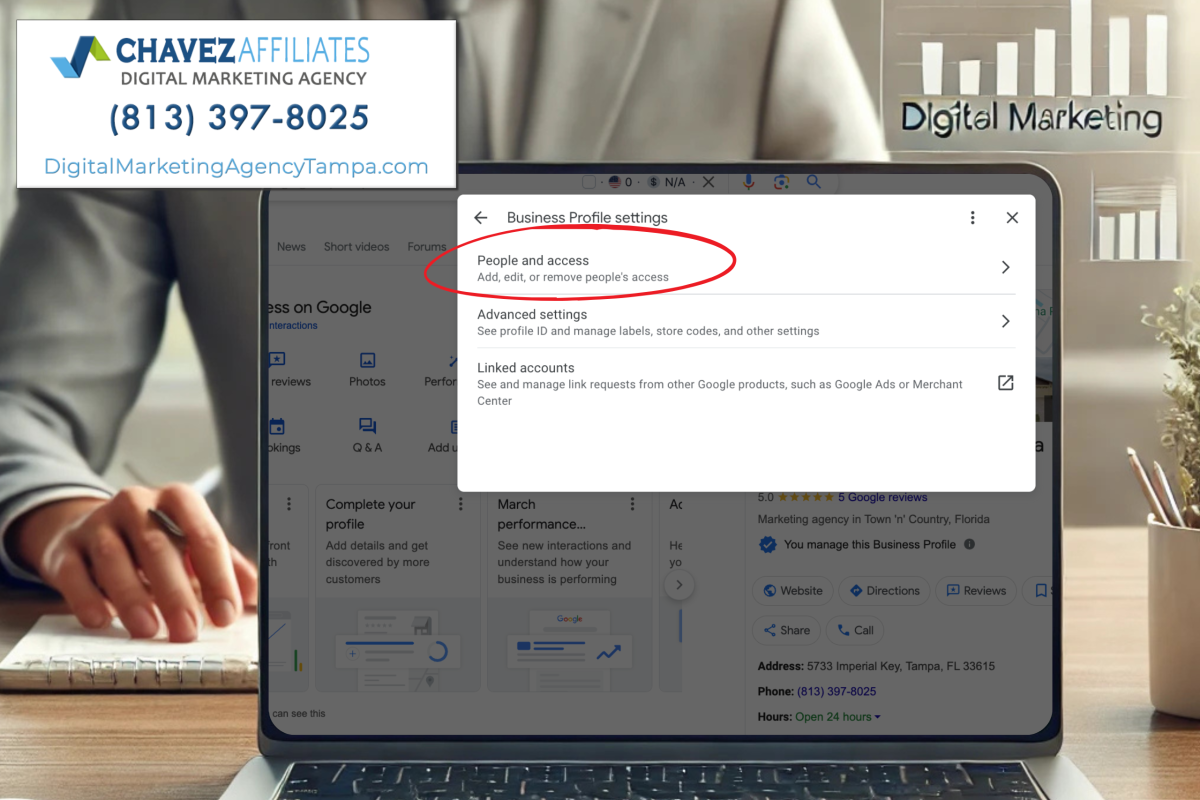
Click the three vertical dots or the “Settings” option, then choose “People and Access” from the dropdown.

Step 4: Click the “Add” Button
You’ll see a list of users already added to the profile. Click the “Add” button (plus sign) to invite a new user.

Step 5: Enter the Email Address
Make sure to use the correct Google account email for the person you’re adding.

Step 6: Assign the Right Role
Choose from the available roles:
- Primary Owner
- Owner
- Manager
Step 7: Send the Invitation
Click “Invite”. The new user will receive an email and must accept the invitation before accessing the profile.
That’s it! You’ve successfully been granted access.
Understanding Google Business Profile User Roles
Google provides three levels of access. Choosing the right one ensures your business stays secure while allowing team members to perform their tasks.
1. Primary Owner
- Full control
- Can add/remove users, edit all information
- Can transfer ownership
- Only one primary owner per profile exists.
Best For: The original creator or business owner.
To improve your local visibility, consider investing in Google Business Profile optimization to ensure your listing is complete, accurate, and engaging.
2. Owner
- Similar access as the primary owner
- Can manage settings, insights, and users (except primary ownership)
Best For: Business partners or high-level staff
3. Manager
- Can post updates, reply to reviews, and edit info
- Cannot manage users or delete the profile
Best For: Marketing staff or your trusted digital agency
Pro Tip: If you’re working with a digital agency like Chavez Affiliates, assigning us as a “Manager” gives us the ability to optimize your listing without risking ownership settings.
Best Practices for Managing Users
To keep your Google Business Profile secure and effective, follow these practices:
- Regularly Review Access: Make sure only current employees or active vendors have access.
- Assign the Right Role: Avoid giving the owner access unless necessary. Use “Manager” for most team roles.
- Avoid Sharing Logins: Always add users with their own Google email this protects your account and lets you track individual activity.
- Monitor Activity: Check the profile regularly for changes or edits. If something looks wrong, you can adjust access immediately.
- Revoke Access Promptly: When a staff member leaves or a contract ends, revoke their access to prevent potential issues.
If you’re struggling to appear in local search results, learn how to rank in the Google 3-Pack and attract more customers near you.
Why Chavez Affiliates is the Trusted Choice for Managing Your Google Business Profile
At Chavez Affiliates Digital Marketing Agency Tampa, we specialize in local SEO, website development, and Google Business Profile optimization for businesses in a variety of industries, including healthcare, home care, construction, and landscaping.
When you partner with us:
- We claim and optimize your Google Business Profile
- Add photos, services, and engaging content
- Monitor and respond to reviews
- Track profile performance and calls
- Improve rankings in local search
Our experienced team makes sure your profile is search-ready, client-attracting, and conversion-focused.
Final Thoughts
Your Google Business Profile is one of the most powerful tools in your local digital marketing arsenal. Adding users the right way helps you grow faster, avoid errors, and deliver an excellent online experience to your customers.
If you’re ready to take your local SEO and online visibility to the next level, partner with the experts at Chavez Affiliates Digital Marketing Agency Tampa.
We’ll help you set up, manage, and grow your online presence so your business thrives in Tampa and beyond. Our Local SEO services are designed to help Tampa-based businesses increase their visibility and drive foot traffic from nearby customers.
Ready to grow your business?
Call us today at 813-397-8025 or request a free consultation with our digital marketing experts at Chavez Affiliates Digital Marketing Agency Tampa. We’re here to help you turn clicks into customers and leads into loyal clients.
Frequently Asked Questions (FAQs)
Can I add multiple users to my Google Business Profile?
Yes, you can add as many users as needed and assign different roles to each one.
What if I no longer want someone to have access?
You can easily remove users by going to “People and Access” and clicking the “Remove” option next to their name.
Is it safe to let a marketing agency manage my profile?
Absolutely. Just make sure to assign the “Manager” role. Agencies like Chavez Affiliates are trusted partners who can optimize your profile professionally without risking ownership.